1
Open Connector Settings
In the Claude app or on claude.ai, go to Settings → Connectors and choose Add custom connector.
Your Favorite Models — All in One Place, with Unlimited Generations.
Enjoy Limited Time 50% OFF! ›Generate Images & Video Inside Your AI Agent
In the Claude app or on claude.ai, go to Settings → Connectors and choose Add custom connector.
Click Add custom connector, name it OpenArt, and paste the server URL. Or Follow instructions for team and enterprise plans.
Click Add → Connect and sign in with your OpenArt account. Then ask Claude to generate an image using OpenArt.
Settings → Apps & Connectors → Advanced settings → enable Developer Mode, then in Connectors click Create, name it OpenArt, and paste the server URL.
Choose OAuth and sign in with your OpenArt account.
Type @ in the message box, select OpenArt to enable it, then ask ChatGPT to generate an image.
Settings → MCP & Integrations → New MCP server (opens mcp.json).
Paste this into mcp.json and save:
{
  "mcpServers": {
    "openart": {
      "url": "https://mcp.openart.ai/mcp"
    }
  }
}Click the Needs login prompt next to the server and approve in the browser. OpenArt tools now show up in Agent chats.
Look for Connectors, Integrations, or MCP servers.
Add a server with transport Streamable HTTP and the URL above. No API key, no extra config.
Sign in with your OpenArt account on first use. Credits and results stay tied to your account.
Connect OpenArt to Claude, ChatGPT, Cursor, and other MCP-compatible agents with a single URL. Generate images, edit visuals, and create videos directly within your workflow.
Connect OpenArt with Claude, ChatGPT, Cursor, and more to unify image generation, video creation, and all your creative library in one seamless workflow.
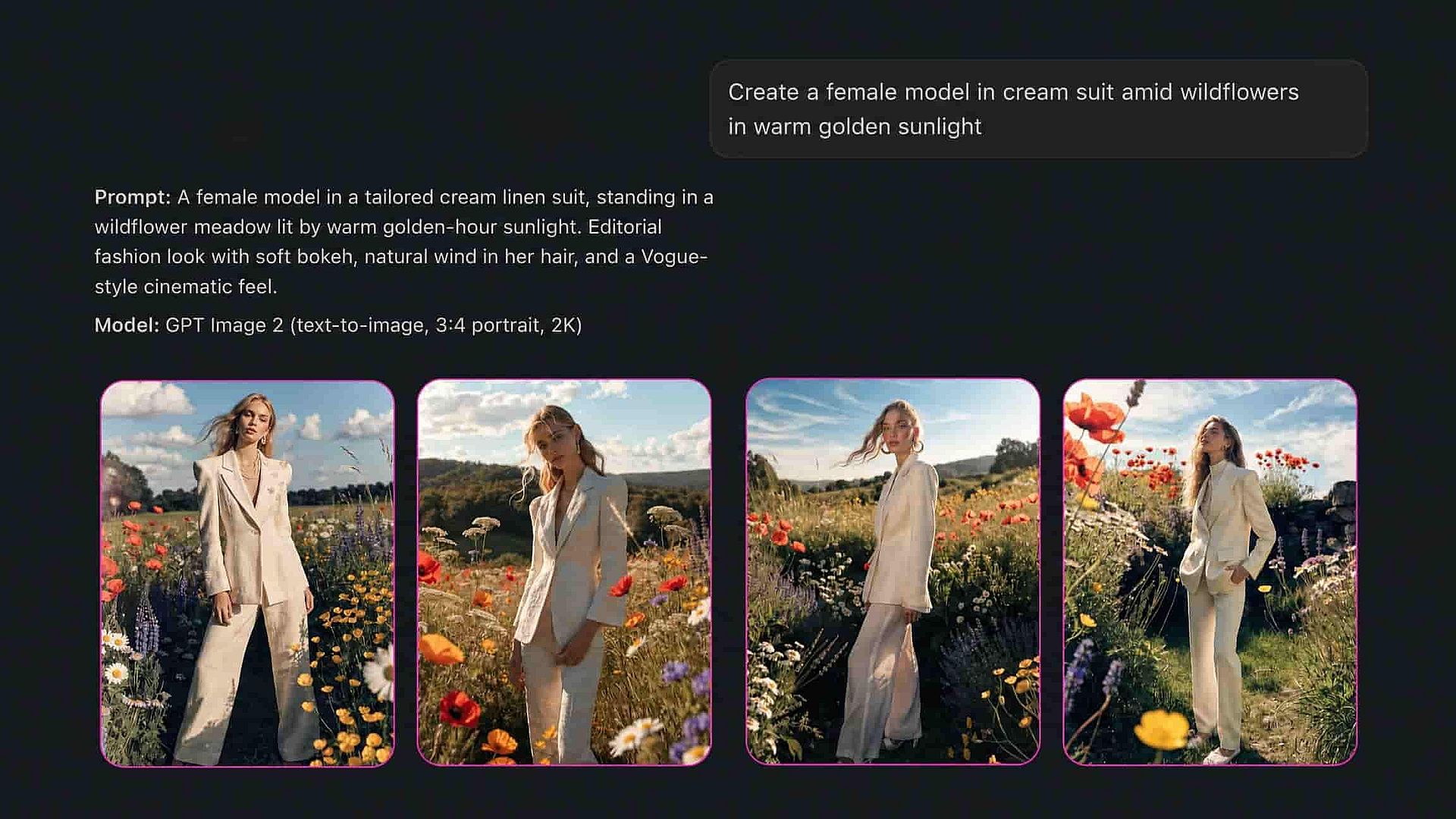
Generate images and videos from text, and run image-to-video workflows, all through a single OpenArt connection.
Add one URL and your agent instantly accesses OpenArt's full catalog of image and video models. Every new model is synced automatically, so your setup never needs manual updating.
Pull any past OpenArt generation into a new creation as a style reference or a video start frame. Your entire creative history is always within reach for reference.
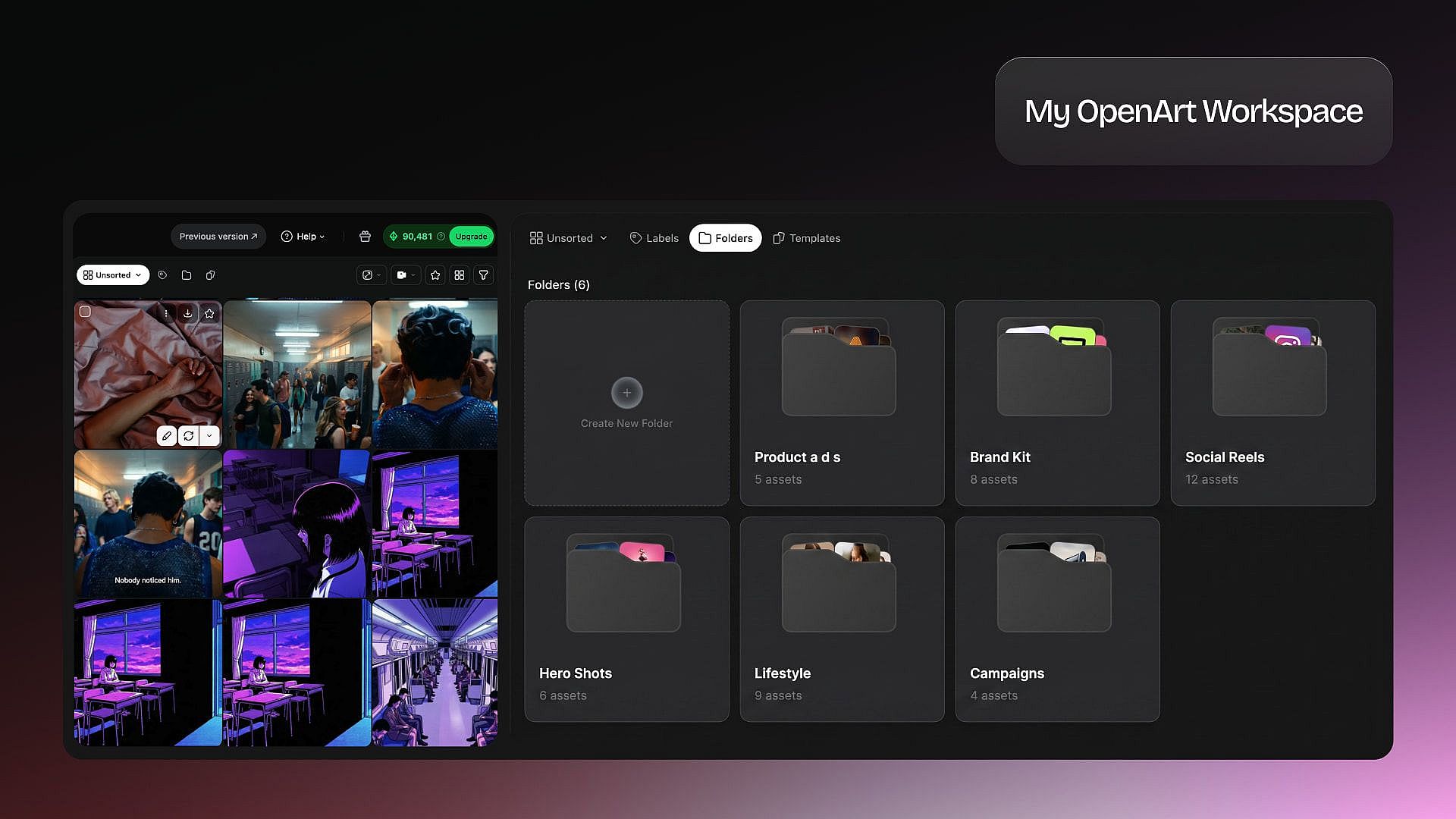
Work with the same OpenArt account, credits, projects, and workspaces you already use, for maximum convenience.
See what becomes possible when OpenArt is connected to your AI agent. Just chat with your agent to create anything!
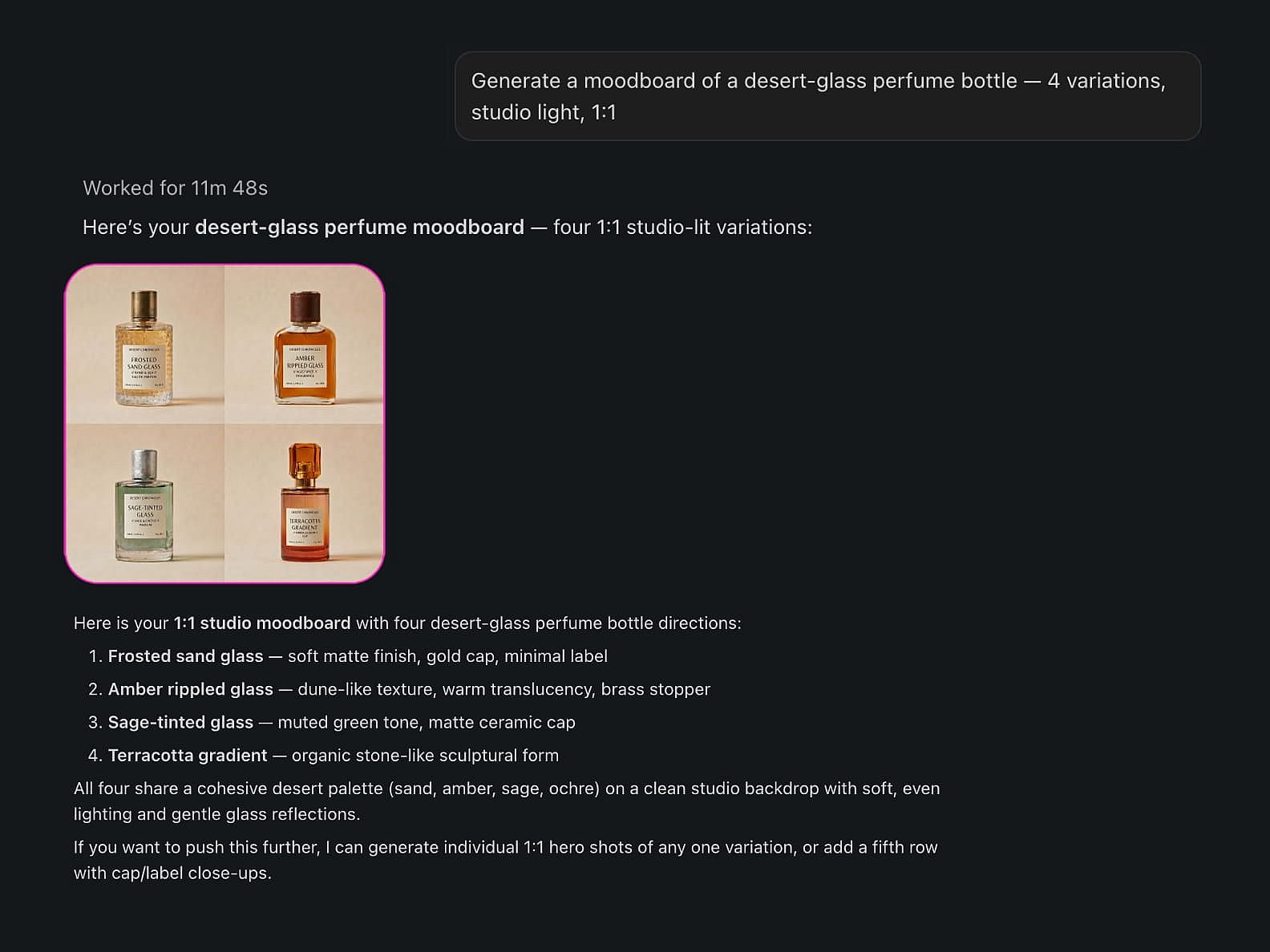
Generate a moodboard of a desert-glass perfume bottle — 4 variations, studio light, 1:1.
Text-to-image across OpenArt's image models. Your agent returns the results right in the conversation and saves them to your library.
Animate this product shot into a 5-second cinematic ad.
Make videos from text or images directly through your AI agent. OpenArt handles generations and returns the finished result right in the conversation.
List my OpenArt projects, then create three new concepts in my Q3 campaign project.
List your OpenArt projects and pick one before you create, so each generation lands in the right place. No manual file shuffling and switching tabs.
Use my last three renders as references.
Pull assets from your OpenArt library and use previous generations to maintain style, characters, and creative consistency.
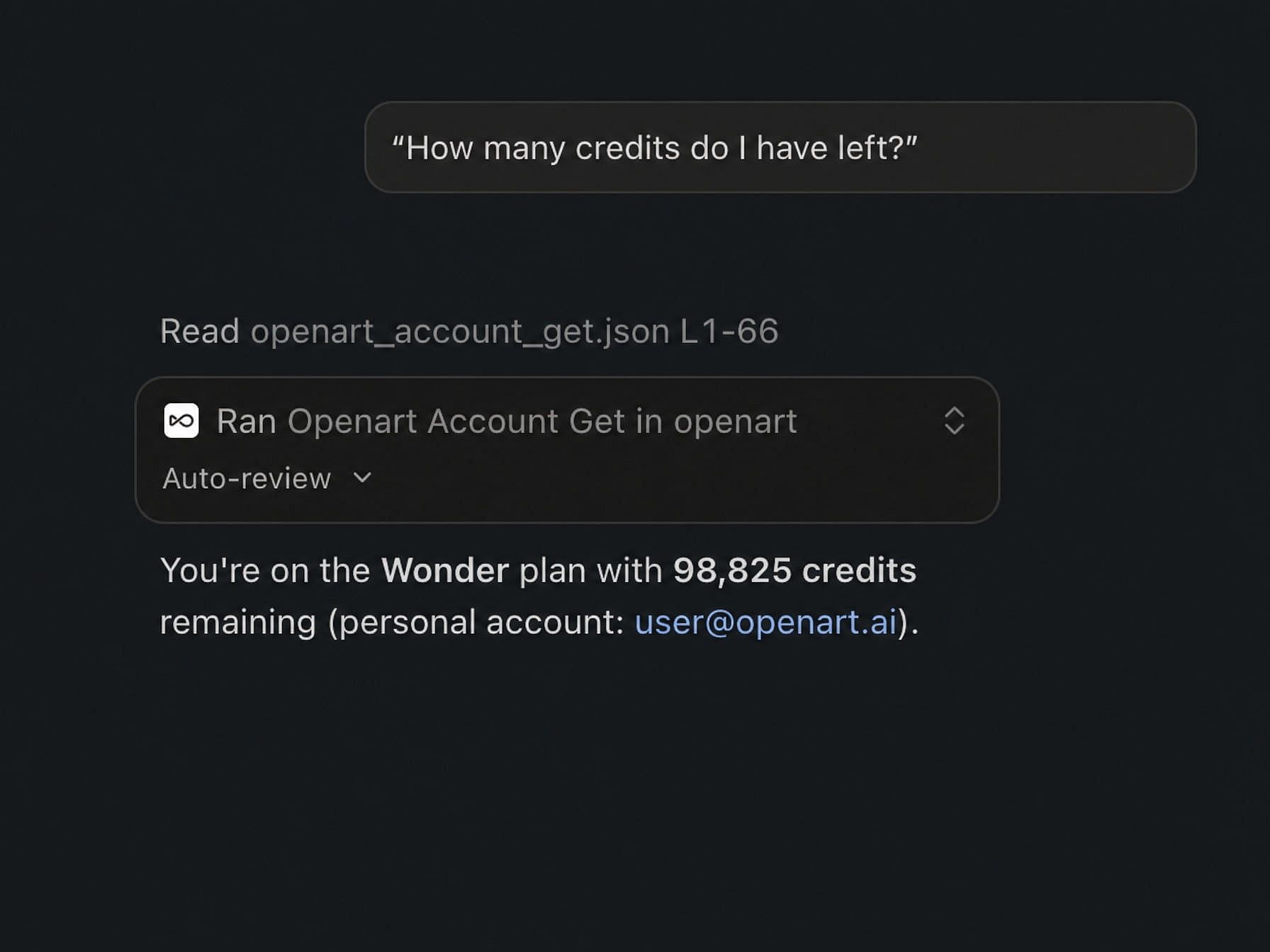
How many credits do I have left?
Check plans, credits, and account information instantly without opening OpenArt settings. All information flows freely between OpenArt and your AI agent.
Join thousands of creators using OpenArt to generate stunning images, videos, and more — all in one platform.
Get Started for Free →


